

Your Google account holds a lot of personal information. This includes your home address, work emails, family photos, and private chats. Google wants to help you keep this data safe from others.
How to Use Google's Security Checkup
Google offers a free Security Checkup tool to help protect your account. It quickly guides you through a security review. The tool points out potential problems without showing too many complicated settings.

You can find the Security Checkup tool by logging into Google in your web browser and visiting this page. You can also go to your Google account page, click "Security and sign-in," and the Checkup should be at the top.
We're a new kind of news feed.
Regular news is designed to drain you. We're a non-profit built to restore you. Every story we publish is scored for impact, progress, and hope.
Start Your News DetoxThe Security Checkup will highlight urgent issues. You can also go through each section even if there are no problems.
Devices and Sign-ins
First, check "Your devices" to see where you are currently signed into Google. It shows the device's location, operating system, and when you last used it.
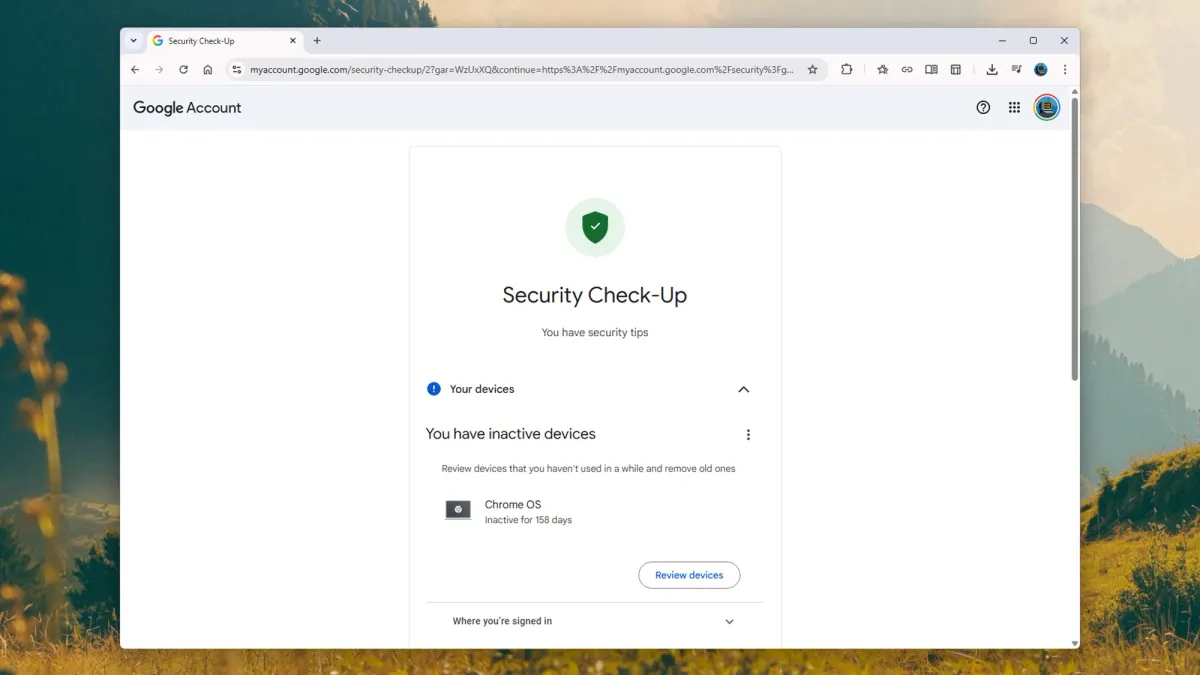
If you see a device you don't recognize or no longer own, you can disconnect it remotely. It's better to be safe. If you accidentally disconnect a device you still use, you'll just need to sign in again.
Next, look at the "Sign-in and recovery" section. This part has important information about how you access your account. Make sure everything is correct and up to date. For example, you might need to confirm your backup email and phone number. These are vital for Google to contact you if you get locked out of your account.
Many devices now use passkeys, like a PIN or fingerprint scan, to access accounts. You can see a list of your set-up passkeys here. If you see an authorization you don't recognize, you can remove it.
Then, check "Your saved passwords." If you use Android and Google Chrome to save login details, your stored passwords will appear here. Google will warn you if any passwords are repeated or too weak. Weak passwords are usually short or simple.
Browsing and Activity
The "Safe Browsing" section is for Chrome users. It offers extra protection against dangerous websites and extensions. This feature requires more data sharing with Google to check your activity. Some users might find it too restrictive if they feel confident identifying threats themselves. The choice is yours.
Open "Recent security activity" to see a detailed list of all security-related actions on your Google account from the last 28 days. This includes device sign-ins or recovered deleted data, which a hacker might try to do. If anything looks suspicious, you can tell Google.
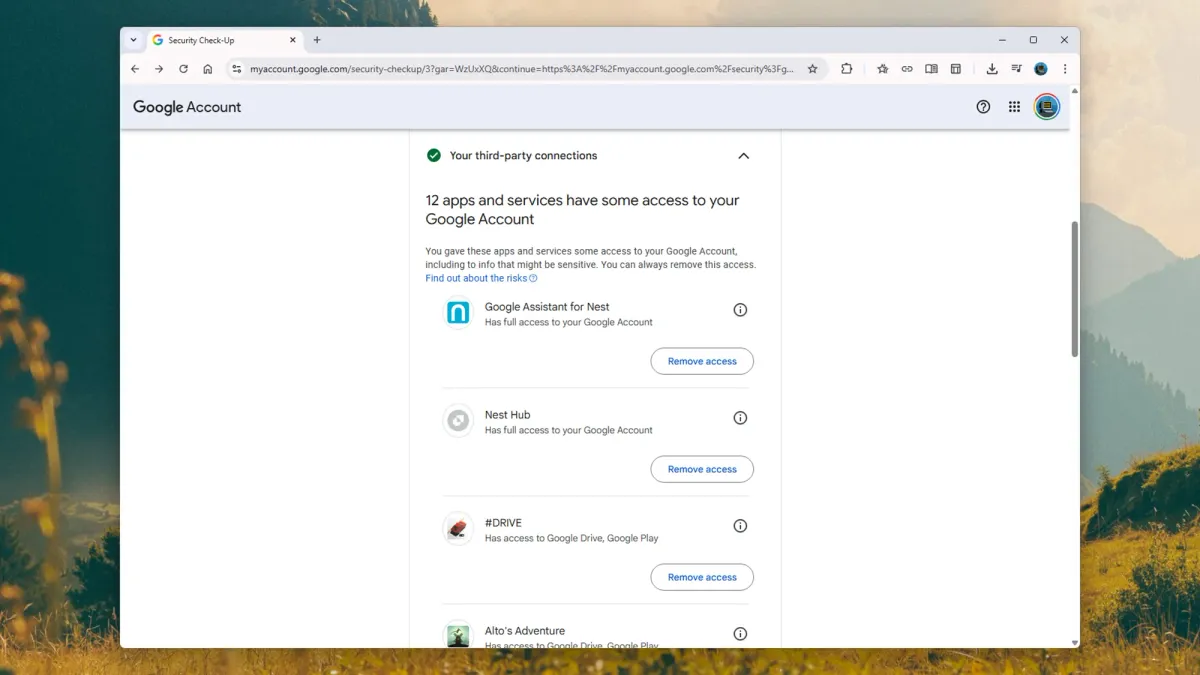
Under "Your third-party connections," you'll find apps, sites, and services linked to Google. This could be services you log into with your Google account or tools that manage your Google Photos. Google smart home devices might also show up here.
If you see anything that shouldn't be there, you can break the link. The app or site will lose access to your Google account and data. If you need to use it again, you'll have to reapprove the connection. It's a good idea to regularly check this list and remove older services you no longer use.
The last part of the Google Security Checkup is "Gmail Settings." Here, you can view and change blocked email accounts and connected email accounts. If something isn't right, you can fix it. Once you're done, your Google account should be much more secure.