
Google Chrome is used by most people around the world. It's known for being fast and easy to use. But you can make it even quicker with a few simple changes.
Boost Your Chrome Speed
Turn on Parallel Downloading
Parallel downloading helps Chrome download files faster. Instead of downloading a file piece by piece, it downloads several parts at once. Think of it like multiple cars using different lanes on a highway to reach the finish line quicker.
To enable this:
- Type
chrome://flagsinto your Chrome address bar and press Enter. - Search for "parallel" in the box at the top.
- Find "Parallel downloading" and set it to "Enabled" using the drop-down menu.
Keep in mind that some websites might not allow parallel downloads. But when they do, you'll notice a real speed boost.
We're a new kind of news feed.
Regular news is designed to drain you. We're a non-profit built to restore you. Every story we publish is scored for impact, progress, and hope.
Start Your News DetoxLoad Websites Before You Click
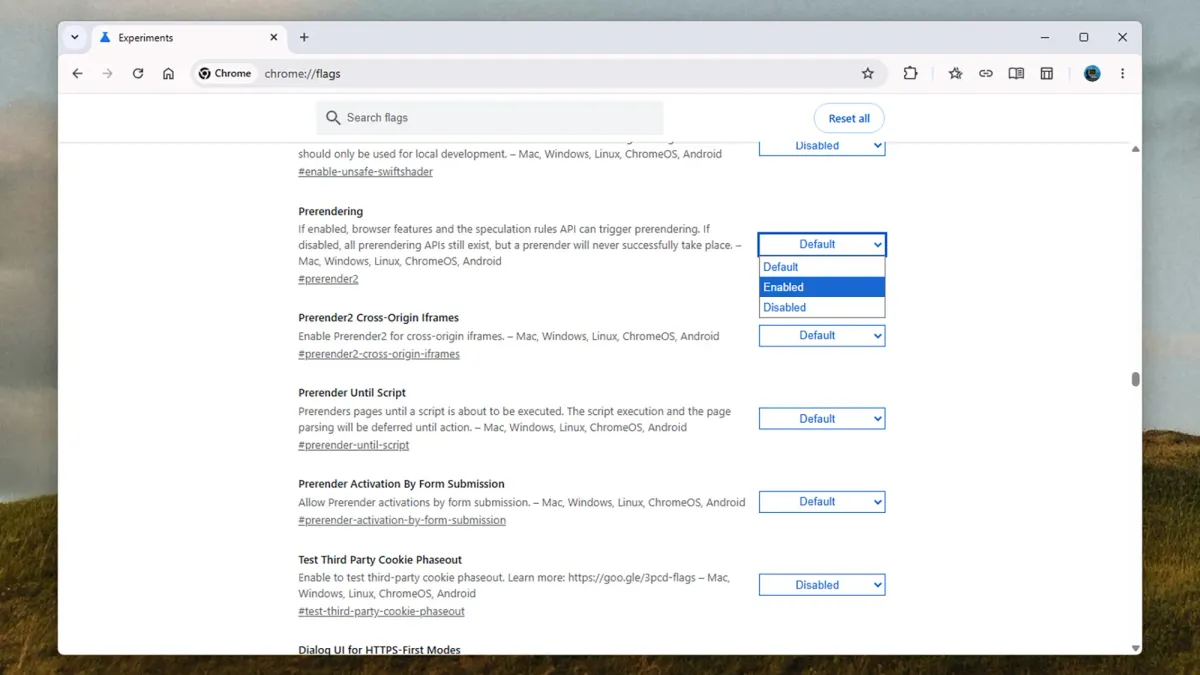
Chrome has a feature called prerendering. It tries to guess which website you'll visit next and loads it in advance. This can happen if you start typing an address you often visit or if your mouse hovers over a link.
To turn on prerendering:
- Type
chrome://flagsin the address bar and press Enter. - Search for "prerendering" in the search box.
- Set "Prerendering" to "Enabled."
Chrome won't always guess correctly, but when it does, your browsing will feel much faster.
Use Hardware Acceleration
Hardware acceleration lets your computer's graphics chip help Chrome load pages. If your computer has a good graphics setup, this can make pages load faster.
To adjust this setting:
- Click the three dots in the top-right corner of Chrome.
- Go to "Settings," then "System."
- Look for "Use graphics acceleration when available."
If it's off, try turning it on. If it's already on and you notice problems, try turning it off. Watch how Chrome performs to see what works best for you.
Enable Memory Saver
Chrome can use a lot of your computer's memory, especially with many tabs open. The Memory Saver feature helps reduce this. It deactivates tabs you haven't used in a while. The tab stays open, but Chrome stops actively updating it.
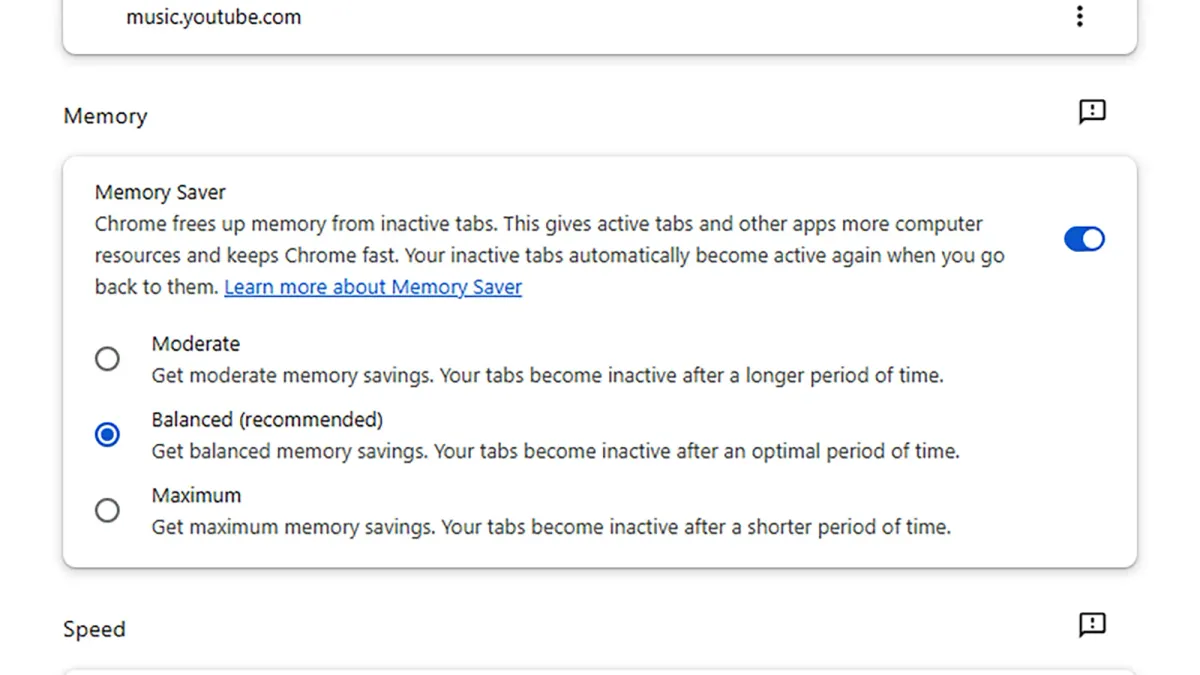
When you click back to a deactivated tab, it reloads and becomes active again.
To turn on Memory Saver:
- Click the three dots in the top-right corner of Chrome.
- Go to "Settings," then "Performance."
- You'll find the "Memory Saver" toggle switch with different control levels.
Remove Unnecessary Extensions
Browser extensions add useful features, but too many can slow Chrome down. Each extension needs to load and monitor your online activity.
Removing extensions you don't use can make Chrome faster. It also improves your security by reducing ways for harmful software to access your data.
To manage extensions:
- Click the three dots in the top-right corner of Chrome.
- Go to "Extensions," then "Manage Extensions."
- For any extension you don't need, click "Remove" and confirm.